 Windows Performance: Settings & Software That Slow Down Your PC (And How to Fix Them)
Your Windows PC doesn’t become slow overnight. Hidden settings, background apps, startup software, and unnecessary services silently reduce performance every day. In this blog, learn which Windows settings affect speed, what happens when you turn them off, and how to safely make Windows faster without upgrading hardware.
Your Windows PC feels slow? These hidden Windows settings and background software are silently killing performance. Learn what to turn off and what NOT to.
If your Windows laptop or PC has become slow over time, laggy during normal use, or takes forever to boot, don’t blame the hardware immediately.
In most cases, the real reason is Windows itself — hidden settings, background apps, and unnecessary software quietly eating your system resources.
In this blog, I’ll explain the exact Windows settings and software that affect performance, what will happen if you turn them off, and whether it’s safe or risky to do so.
1. Startup Applications: The First Reason Windows Feels Slow
When Windows starts, it loads not only the operating system but also dozens of applications that register themselves to launch at startup. These include chat apps, cloud sync tools, game launchers, audio drivers, and software update services. While some of them are necessary, many are not.
Startup apps significantly increase boot time and consume RAM and CPU resources before you even begin using your system. This creates the illusion that Windows is slow, when in reality it is overloaded at startup.
If you disable unnecessary startup applications, Windows will boot faster and feel smoother immediately after login. The only downside is that those apps won’t open automatically — which is usually not a problem, as they can still be launched manually when needed.
2. Background Apps: Hidden Processes That Drain Performance
Many Windows applications continue running in the background even when you’re not actively using them. These background apps periodically sync data, check for updates, and send notifications, all of which consume system resources.
On systems with limited RAM or older processors, background apps can cause noticeable lag, slower multitasking, and increased battery drain on laptops. The problem is worse because users often don’t realize these apps are running at all.
Turning off background app permissions for non-essential apps frees up memory and CPU resources. The only impact is delayed notifications or background updates, which most users can live without.
3. Visual Effects and Animations: Style Over Speed
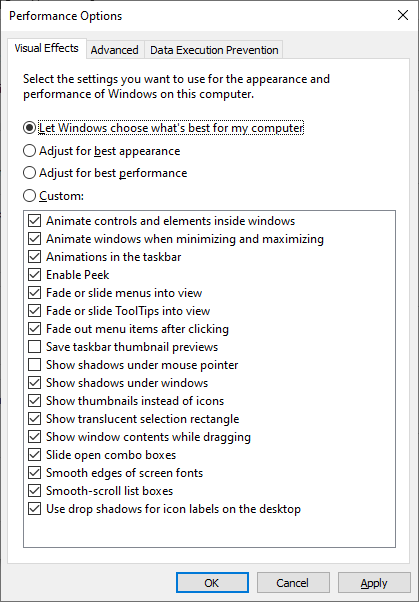
Windows uses animations, shadows, transparency effects, and smooth transitions to improve visual appeal. While modern PCs handle this easily, low-end or older systems struggle because these effects rely on GPU and RAM resources.
On weaker systems, visual effects can cause stuttering, slow window switching, and delayed response times. This is especially noticeable when multiple apps are open at the same time.
Reducing or disabling visual effects improves responsiveness and makes Windows feel faster. The trade-off is purely cosmetic — Windows will look simpler but perform noticeably better.
4. Windows Search Indexing: Constant Disk Activity
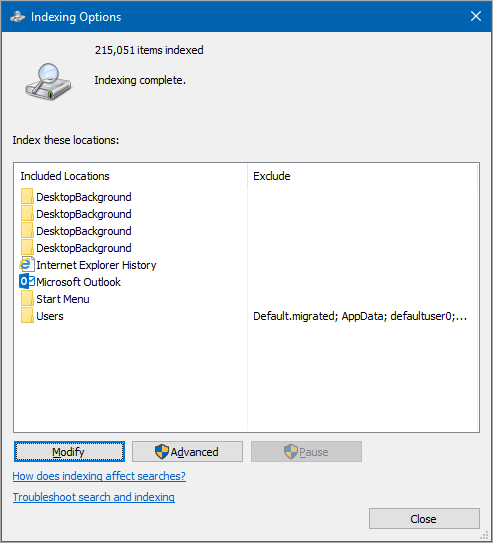
Windows Search Indexing continuously scans files and folders to make searches faster. While useful, this process can cause high disk usage, especially on systems using traditional hard drives (HDDs).
Users often notice their disk running at 100% usage without understanding why. This background indexing is one of the major reasons for that behavior.
Limiting or disabling indexing improves disk performance and reduces background activity. The only downside is slightly slower search results, which is a fair trade-off for better overall performance.
5. Windows Services Running Unnecessarily
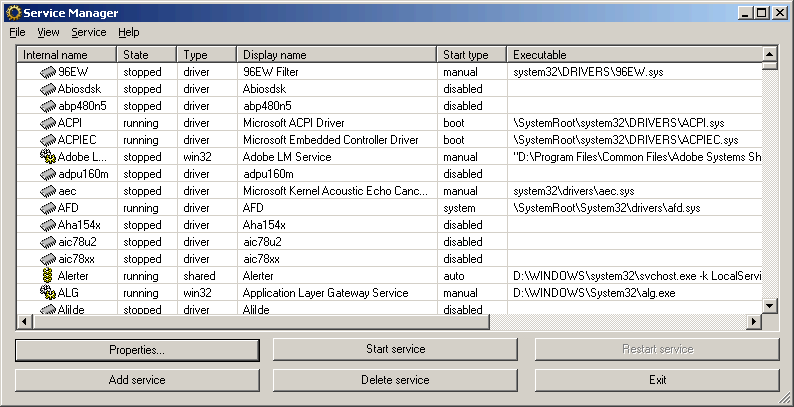
Windows runs many background services to support optional features such as Bluetooth, faxing, remote access, and diagnostics. On most systems, several of these services are never used.
Each service consumes a small amount of memory, but together they create constant background load. This affects low-end systems the most.
Disabling unused services can free resources, but this should be done carefully. Turning off critical services may break certain Windows features. Only services you clearly understand should be modified.
6. Antivirus Software and Real-Time Protection Impact
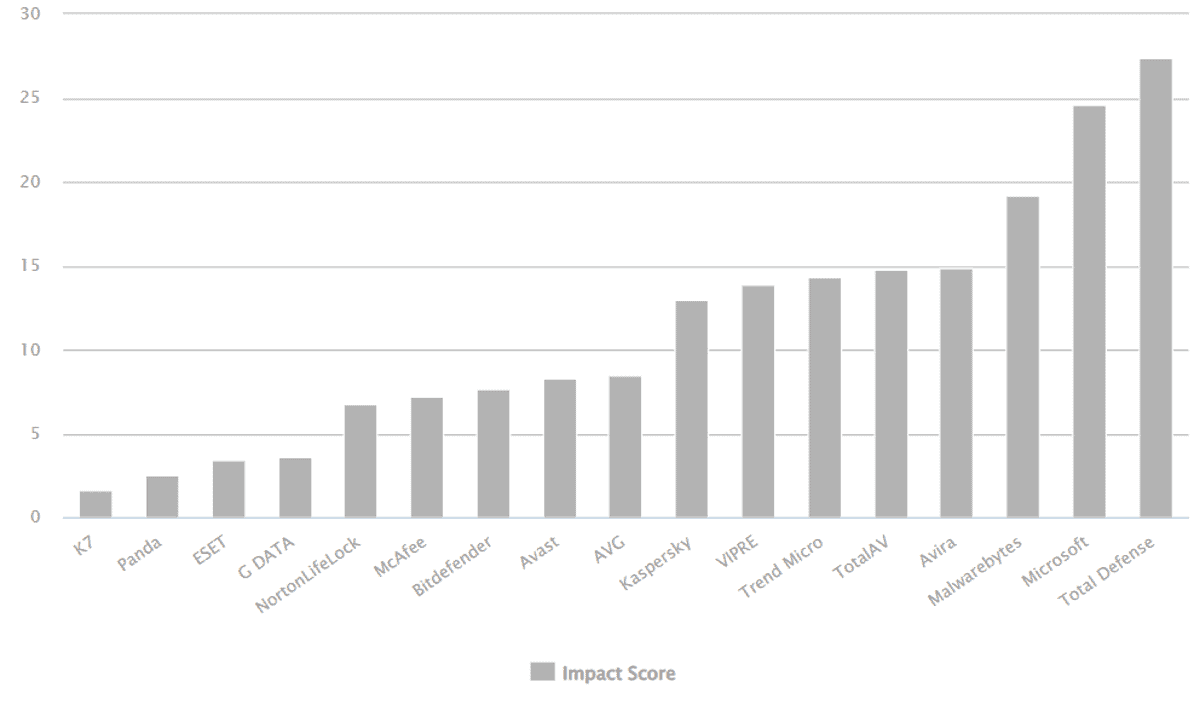
Antivirus software constantly scans files and monitors system activity to protect against malware. While necessary, some third-party antivirus tools are extremely resource-heavy.
Multiple security layers running together can significantly slow down Windows. In many cases, users install a third-party antivirus on top of Windows Defender, unknowingly duplicating protection.
Using Windows Defender alone provides sufficient security for most users while maintaining better system performance. Completely disabling antivirus protection is strongly discouraged, as it exposes your PC to serious risks.
7. Temporary Files, Storage Sense, and Disk Cleanup
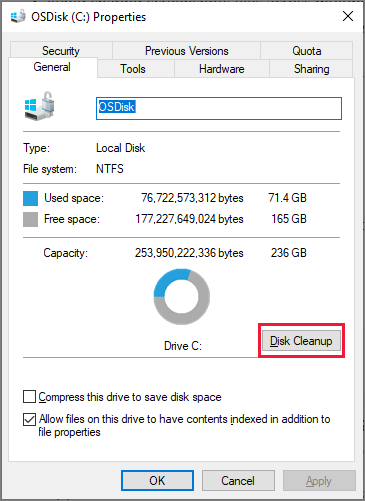
Over time, Windows accumulates temporary files, cache data, update leftovers, and system logs. These files not only consume storage space but also slow down disk access.
A nearly full drive causes Windows to struggle with read and write operations, leading to longer load times and lag.
Regularly using Disk Cleanup or enabling Storage Sense removes unnecessary files automatically. This improves disk performance with no negative side effects.
8. Power & Performance Mode: The Hidden Speed Limiter
Windows power modes control how aggressively the CPU and other components are allowed to perform. Power Saver mode limits performance to reduce battery usage.
When this mode is active, apps may feel slower and system responsiveness decreases. Many users unknowingly leave this mode enabled even while plugged in.
Switching to Balanced or Best Performance allows Windows to use full system potential. The only downside is increased battery consumption when unplugged.
9. Bloatware and Pre-Installed Applications
Most Windows PCs come with pre-installed apps, trials, and promotional software that users never use. These apps often run background processes and update services.
Bloatware wastes system resources and storage while providing little to no value. On low-end systems, this can noticeably reduce performance.
Removing unnecessary pre-installed apps results in a cleaner, faster Windows experience. Some apps may not be easily reinstallable, so remove only those you’re sure you don’t need.
10. Outdated Drivers and Windows Updates
Drivers act as a bridge between hardware and Windows. Outdated or incompatible drivers can cause lag, crashes, overheating, and poor gaming performance.
Skipping Windows updates can also leave performance optimizations unused.
Keeping Windows and drivers up to date ensures better stability, improved performance, and fewer bugs.
windows slow fix
speed up windows 10
speed up windows 11
windows performance settings
windows optimization guide
windows startup apps
windows background apps
windows high disk usage
improve laptop performance
windows tips and tricks
Post a Comment
For any doubts feel free to ask in comments below.
Stay Connected to Us for more such Courses and Projects.